Image compression usually trades some encoded detail for a smaller file. The useful reduction depends on image content, dimensions, format, and the place where the result will be used. Test the downloaded file instead of relying on a general savings figure.
This guide covers 3 common goals:
- A lighter preset with visual review
- A stronger preset or target when file size is the priority
- Batch compression (compress many images at once — even with mixed formats)
You can do all of this in PhoEdit:
- Compress images: Compress Image
- Convert to JPG (all formats → JPG): Convert to JPG
- Convert to PNG (all formats → PNG): Convert to PNG
PhoEdit’s compressor supports JPG, PNG, WEBP, GIF, TIF, SVG, PSD, HEIC — you can upload them together and compress in one batch.
Before you start: what actually reduces file size?
In practice, there are 3 useful levers:
- Resize dimensions if the image is larger than the destination needs.
- Choose a suitable format (JPG for ordinary photos without transparency; PNG when transparency or crisp graphics matter; WebP where the destination supports it).
- Adjust compression (quality level or target file size).
If you need to resize first, do it in the editor, then compress:
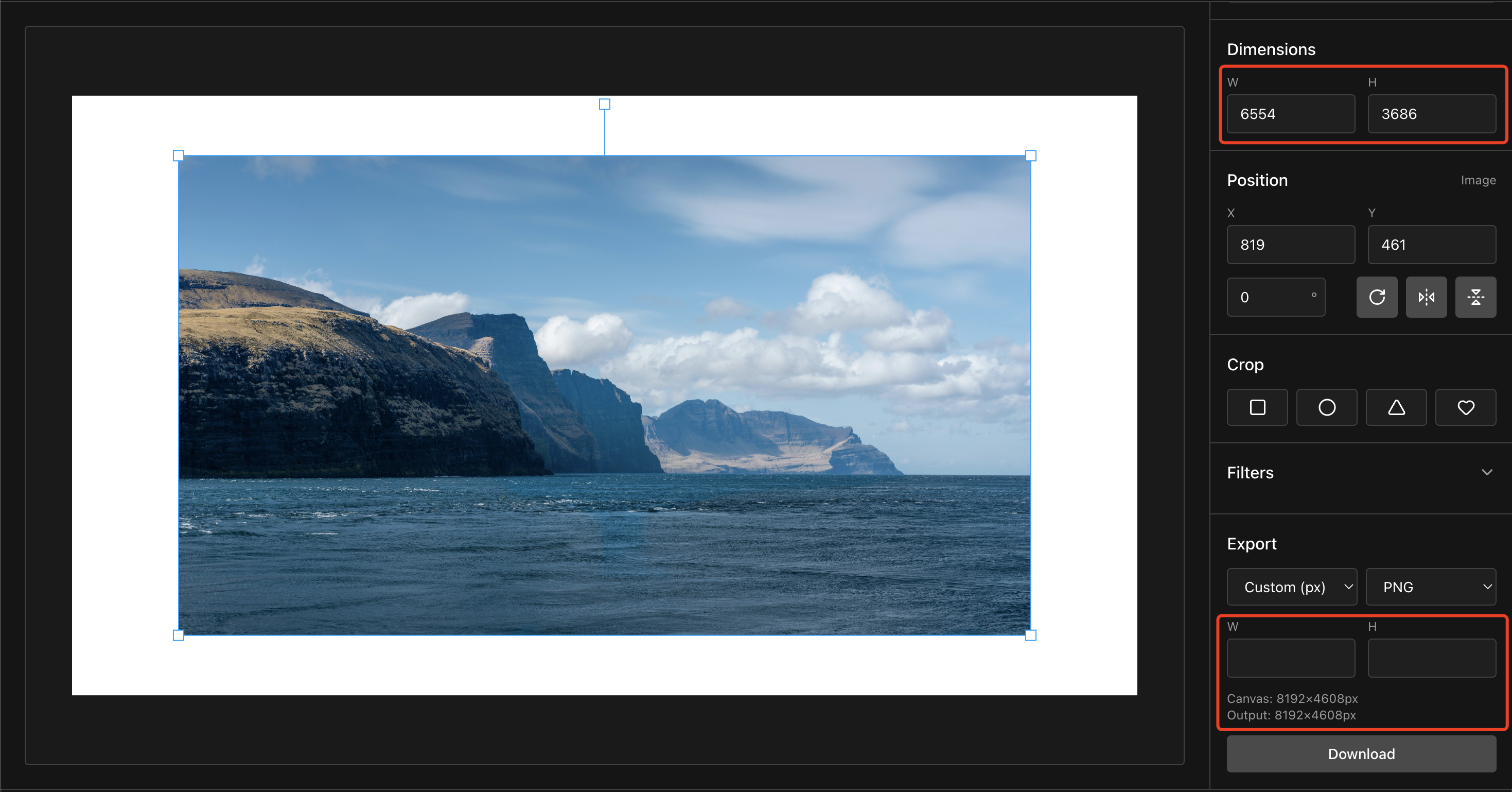
Goal 1: Start light and compare the downloaded file
Use this when you want a smaller file but still need text, edges, gradients, or photo detail to remain acceptable for the destination.
Step-by-step
- Open: Compress Image
- Upload your image(s).
- In Compression, choose Low first.
- Click Download and compare the result.
- If the file is still too large, try Medium next.
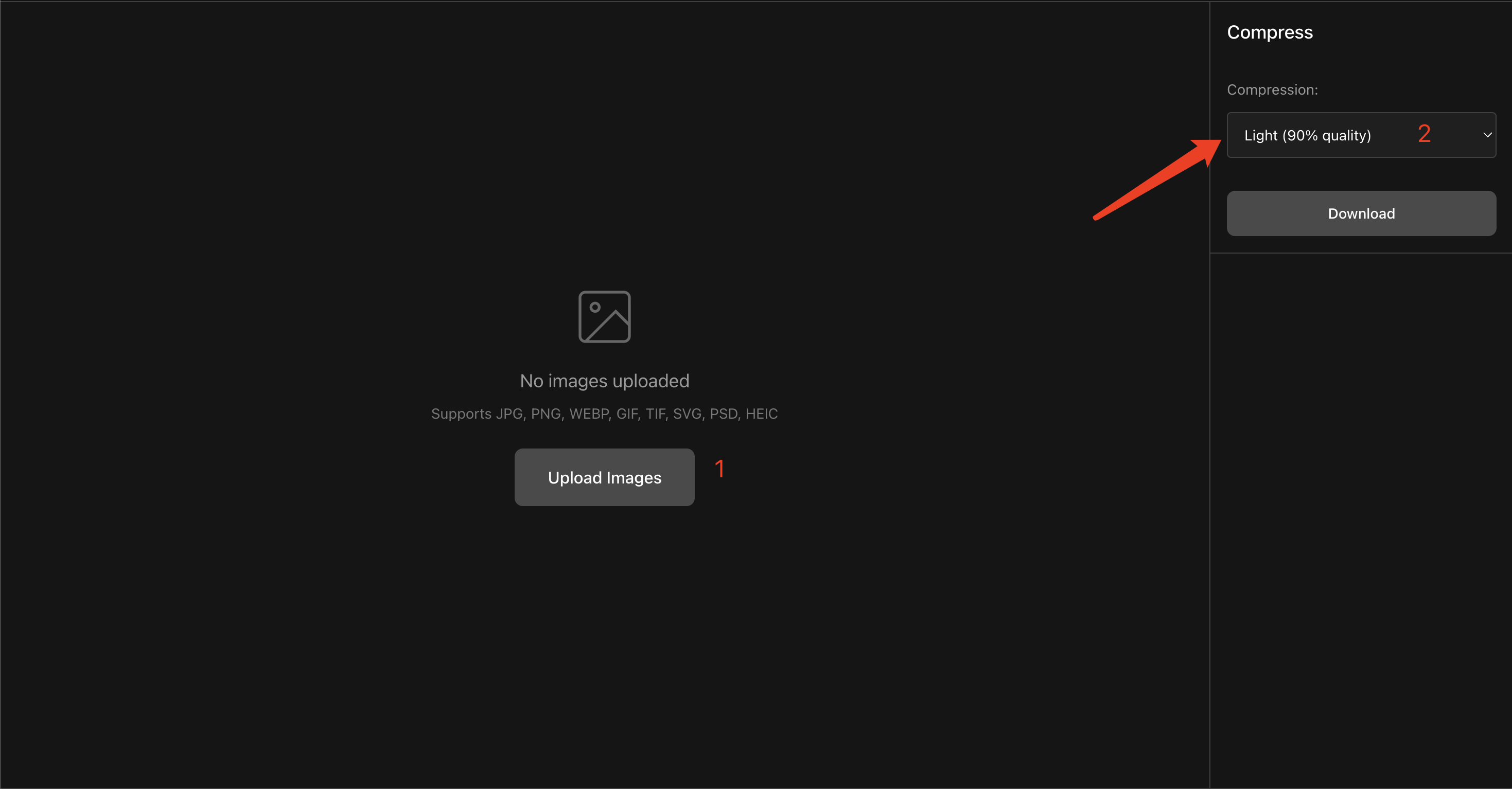
How to check the visible result
Zoom to 100% and look at:
- Text edges (jagged / blocky artifacts)
- Gradients (banding)
- Skin / fine details (smearing)
If you notice artifacts, go one level lighter.
Goal 2: Use a stronger setting when file size comes first
Use this when you have strict size limits (email, forms, messaging apps, slow networks). You’ll usually need a more aggressive setting, and sometimes a smaller dimension.
Option A: Use a stronger quality preset
- Upload your image(s) in Compress Image
- Pick High
- Download and check quality (especially text and gradients)
Option B: Custom target file size
If you have a hard target like “under 300KB”, use Custom:
- In Compression, choose Custom
- Set Target file size (e.g.,
300 KBor1 MB) - Download, then check the actual file size. PhoEdit searches encoding levels toward the target, but some images can still finish above it.
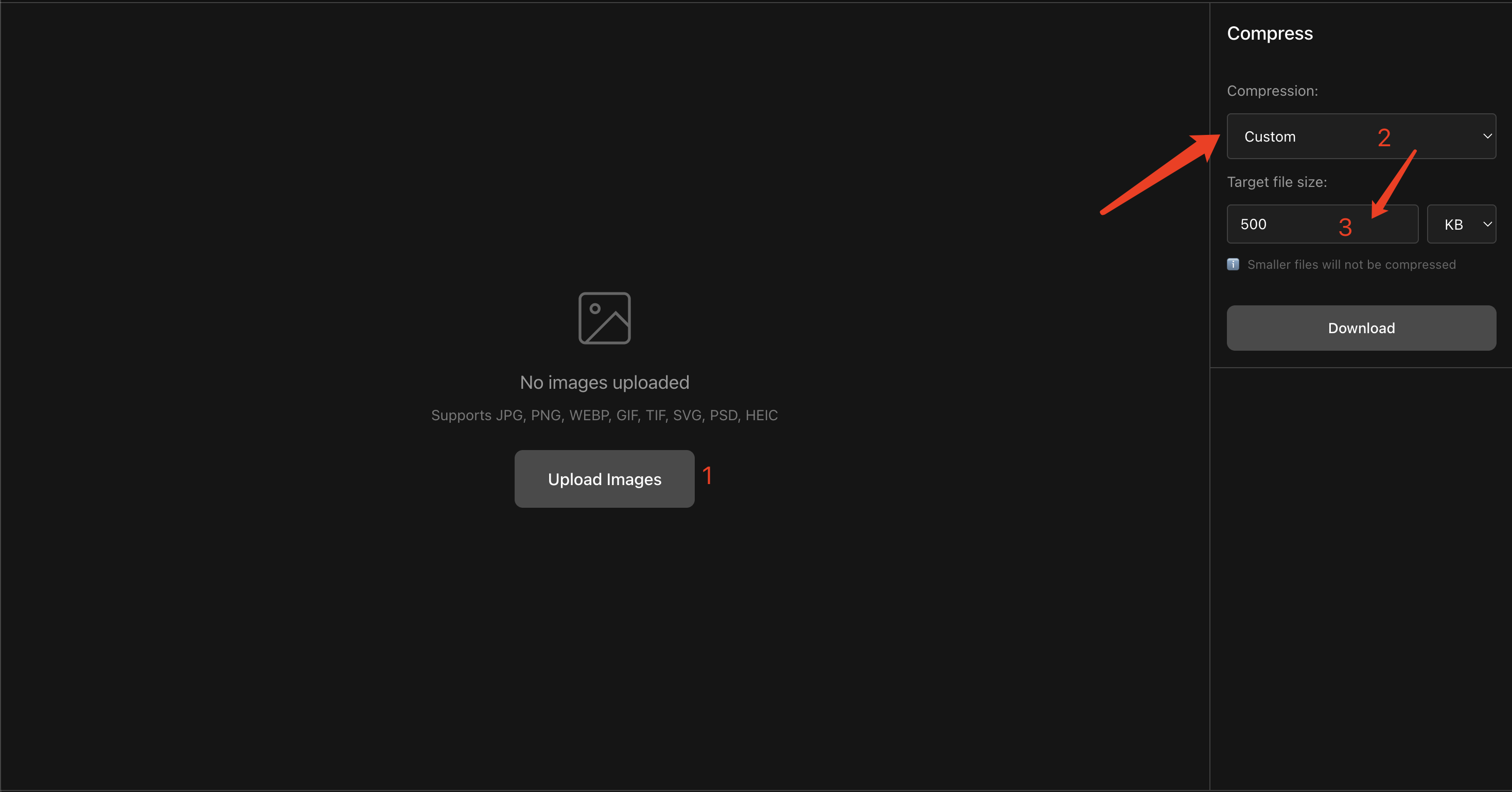
A safer target-size workflow
- If the image is larger than needed, resize first.
- Then use Custom target file size and check the downloaded size.
- If the result is still above the limit or looks damaged, reduce dimensions or use a less restrictive target rather than assuming another compression pass will fix it.
Goal 3: Batch compression (mixed formats)
PhoEdit supports bulk compression — you can upload multiple images at once, even if they’re different formats (PNG + JPG + WEBP + GIF, etc.).
Step-by-step
- Open: Compress Image
- Upload multiple files (mixed formats are OK).
- Choose a compression mode:
- Low for a lighter first attempt
- Medium/High for progressively stronger compression
- Custom if you need a target size
- Click Download
- If you upload multiple files, you’ll get a ZIP download.
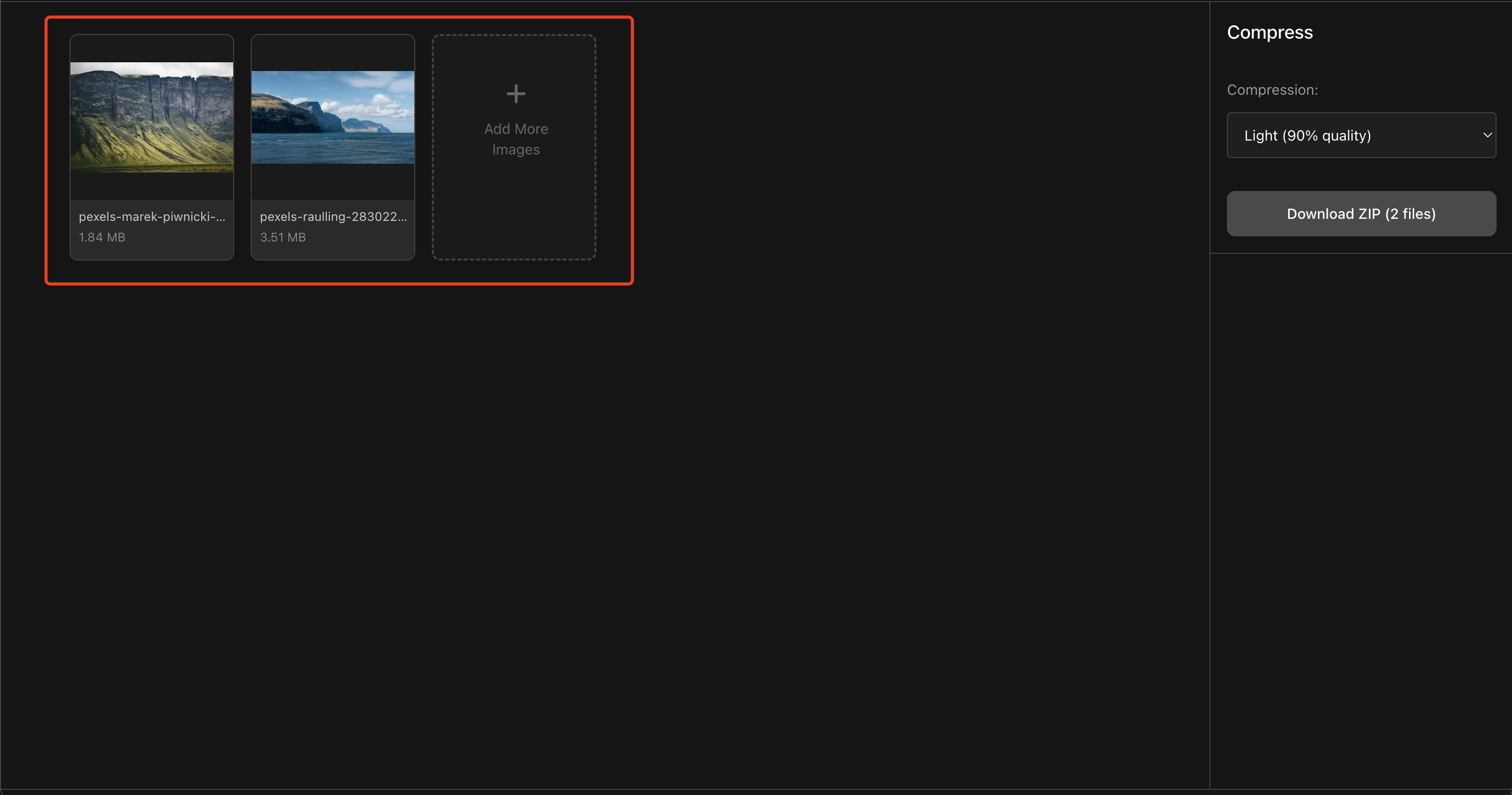
Notes about formats (quick and practical)
- Photos without transparency are often practical as JPG
- Transparency or crisp flat graphics often call for PNG
- HEIC is often exported as JPG for compatibility
- SVG/PSD/TIF may be exported as PNG/JPG depending on what’s supported in the browser
If the destination requires JPG or PNG output, use:
FAQ
How should I choose a compression level?
Start with Low, compare the download with the original, and use Medium or High only if the result is still too large. If you need a specific ceiling, use Custom target size, then verify both the actual size and the visible result at 100% zoom.
Can I batch compress mixed formats?
Yes. You can upload a mix of JPG, PNG, WEBP, GIF, TIF, SVG, PSD, HEIC and compress them in one batch.
Will compression change my image dimensions?
Compression changes the file size. Dimensions usually stay the same unless you resize first in an editor.
Want more tools? Try: Photo Editor